
This is a short tutorial on how to embed a PDF into a WordPress post using Scribd.com.
Step 1: Create a Scribd.com account
This is an easy process. Go to a Scribd.com and press the “Sign up” at the top of the page.
Step 2: Upload your PDF to Scribd.com
Press the “Upload” button at the top of the Scribd.com site.

Next press the “Select files to upload” button

Locate your PDF file and press “Open.” This will start the upload process. Fill out at least the Title and Description and press “Save and Continue.” Then press the “You’re done. View document on Scribd” link. Your document should now be uploaded into your Scribd.com account.
Step 3: Copy the Embed Code
Locate and press the “Embed” button.

The following settings should be satisfactory for insertion into your WordPress blog.
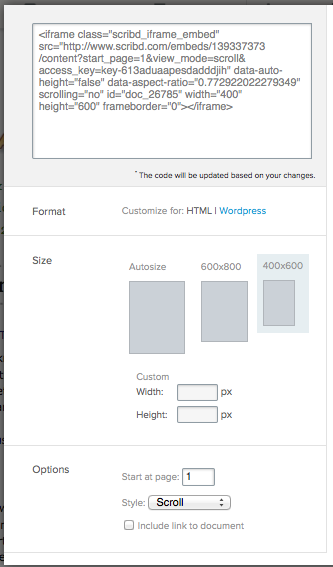
Copy the iFrame code at the top of this window.
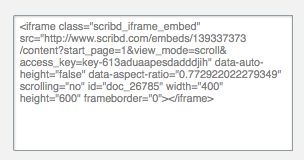
Step 4: Paste the Embed Code into Post
Open the post you would like to insert the PDF into. Click on the “Text” tab at the top of the WYSIWYG editor.

Paste the embed code, copied from Scribd.com, into the WYSIWYG window.
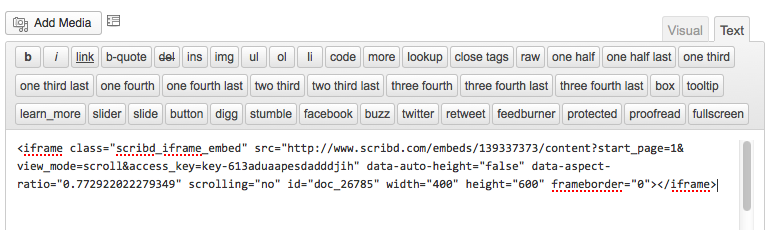
Press the “Update” or “Publish” button and your PDF will now be visible on this blog post.
FINISHED
This is what your embedded PDF will look like:
Recent Comments