
HandBrake
Handbrake is a free program that can help compress large video files into a manageable size. You can download Handbrake from the following website:
Export your video
Open Video in Handbrake
You will now open Handbrake on your computer. Click on the “Source” button at the top left of your screen and select the video you exported in the last step. Next hit browse to the right of the destination file input box to select a destination location. Your compressed file will be saved in this location.
Setup the Video
Use the following screenshot to start playing with the video details:
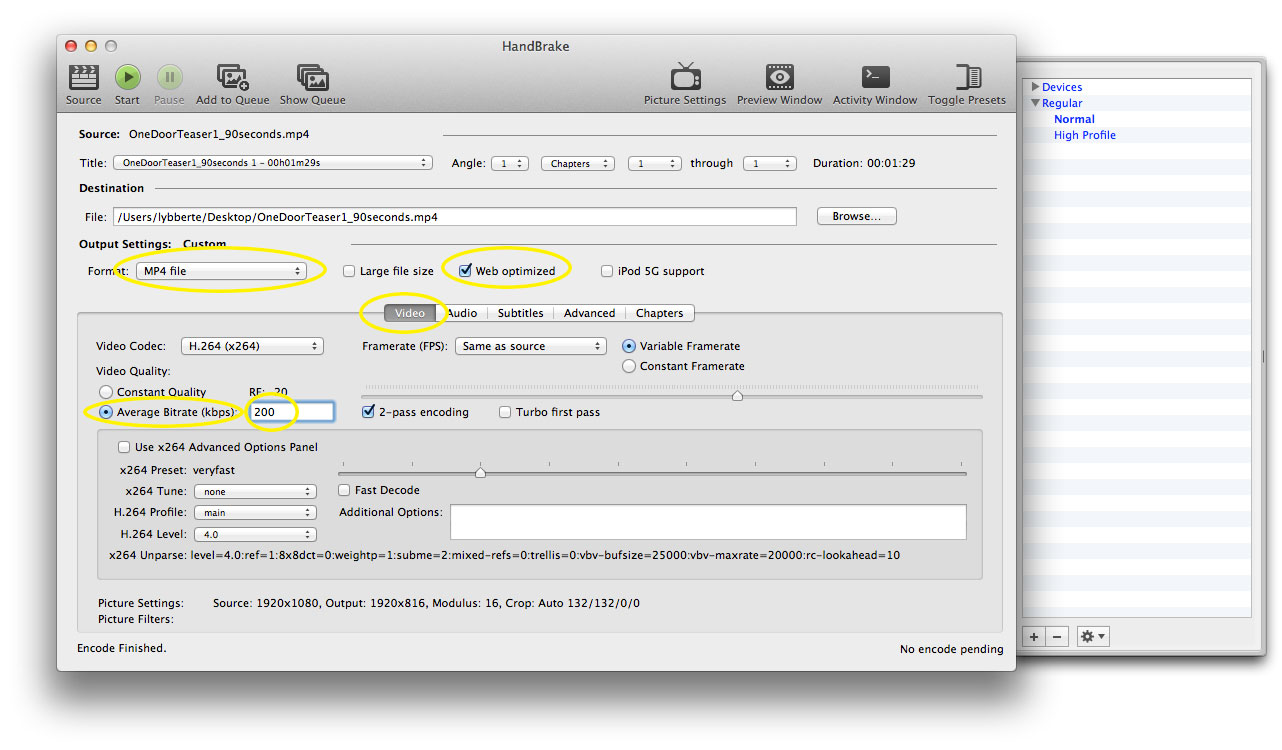
- Format = MP4 File
- Check “Web optimized”
- Select the “Video” tab
- Select “Average Bitrate (kbps)” under “Video Quality.” Start this at 200.
Setup the Audio
Use the following screenshot to start playing with the audio details:
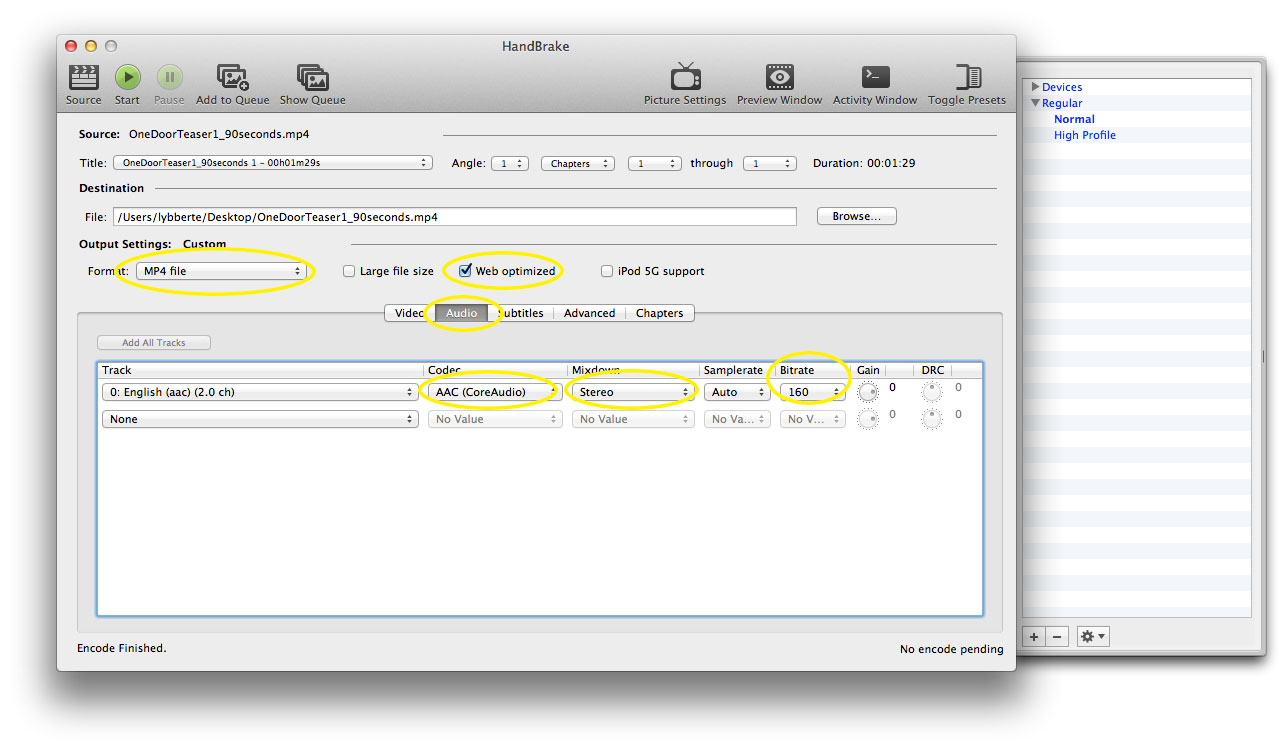
- Format = MP4 File
- Check “Web optimized”
- Select the “Audio” tab
- Select “AAC (CoreAudio)” Codec.
- Select “Stereo” Mixdown
- Choose 160 for the Bitrate
Change the file name
Click on the Browse destination button (mentioned in above step) to rename your file. Name this file with the video and audio bitrates in the name. This will help determine what your settings for each video are. Here is a sample name:
Eric-Lybbert-Podcast-V200-A160.mp4
Final Step
Press the start button when you have all your setting correct. This will compress and export the video to your specified location. You might need to play with the Audio and Video bitrates to get a good quality compressed video under 5mb.
Recent Comments